

Extinguisher Scanner app iconExtinguisher Scanner
How it worksFeaturesPricingAboutSupport
Contact SalesGet the app →
Open navigation menu
How it worksFeaturesPricingAboutSupport
Contact SalesGet the app →

Fire extinguisher barcode scanner alternative

Fire Extinguisher Barcode Scanner Alternative — No Extra Stickers

Scan the extinguisher. Not another sticker.

Extinguisher Scanner uses the existing manufacturer label to help fill key extinguisher information for you to review before saving the inspection.

Download Extinguisher Scanner on the App StoreGet Extinguisher Scanner on Google Play
See how it works

Available on iOS and Android

Scan results may vary. Review captured information before saving.

No separate label rollout

Start with the manufacturer label already on the extinguisher.

Review before saving

Confirm or correct the information captured from the label.

One inspection workflow

Scan the label, inspect the unit, and continue the route.

Two ways to begin

Reduce the setup between the extinguisher and the inspection.

Barcode systems remain useful for durable asset identity and repeat visits. Manufacturer-label scanning changes the first step by using information already printed on the extinguisher.

Common asset-tracking pattern

Scan an encoded identifier to open its associated asset record.

Setup steps and barcode or QR capabilities vary by platform.

Barcode / QR asset workflow

Add an asset identifier, then scan it.
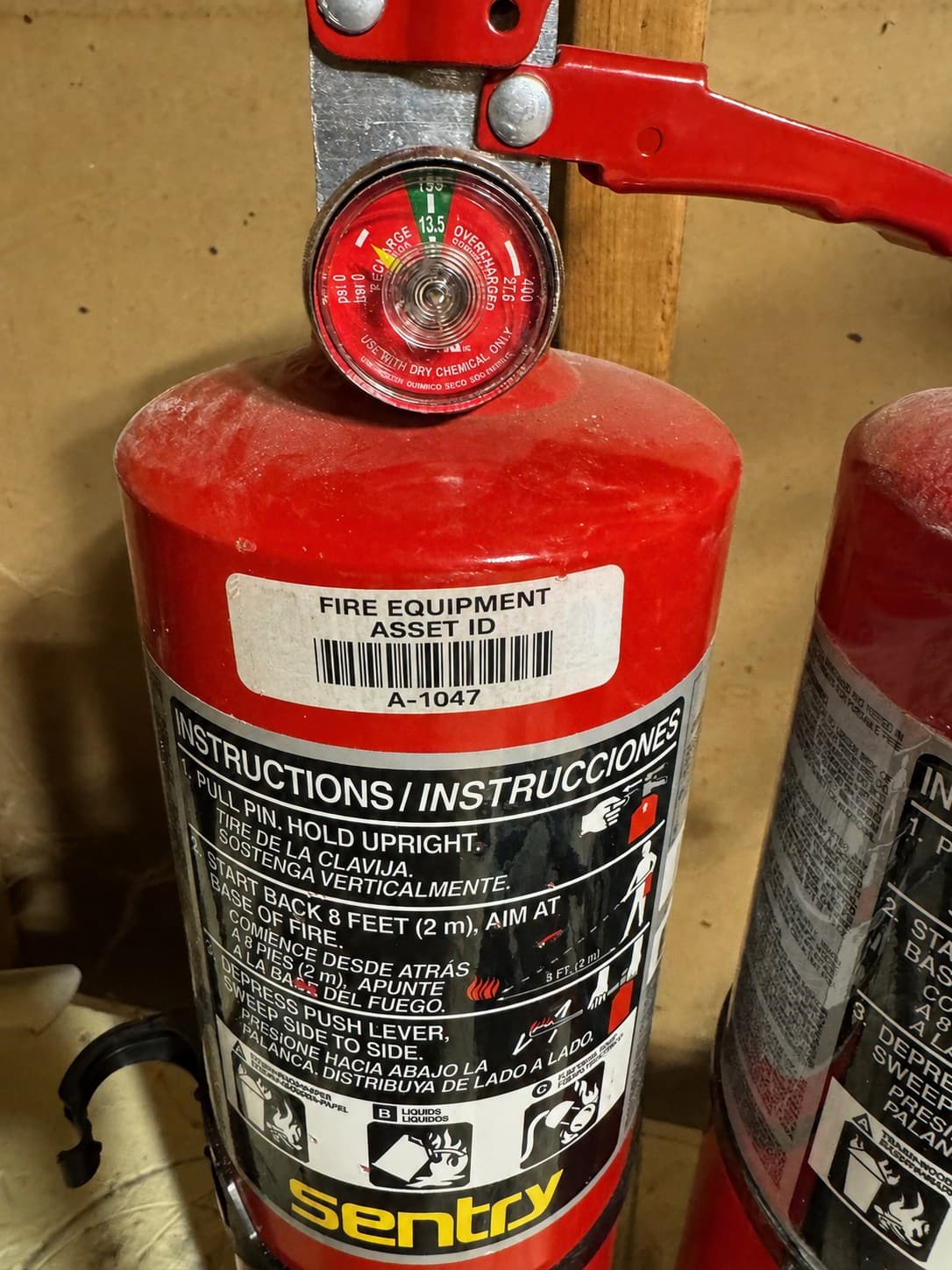
Fire extinguisher with a separately applied barcode asset label
Added asset sticker / QR code

Additional asset label→Scan identifier→Retrieve record

General asset-label example; exact implementations vary by platform.

  1. 01Create or import the equipment record
  2. 02Associate a barcode or QR code
  3. 03Place the label when one is needed
  4. 04Scan the code on future visits
  5. 05Open the linked record and inspect

Exact workflows vary by platform. Some systems also support selected manufacturer-provided codes.

NO EXTRA LABEL NEEDED TO START
Extinguisher Scanner

Manufacturer-label alternative

Begins with information already printed on the extinguisher.

Extinguisher Scanner

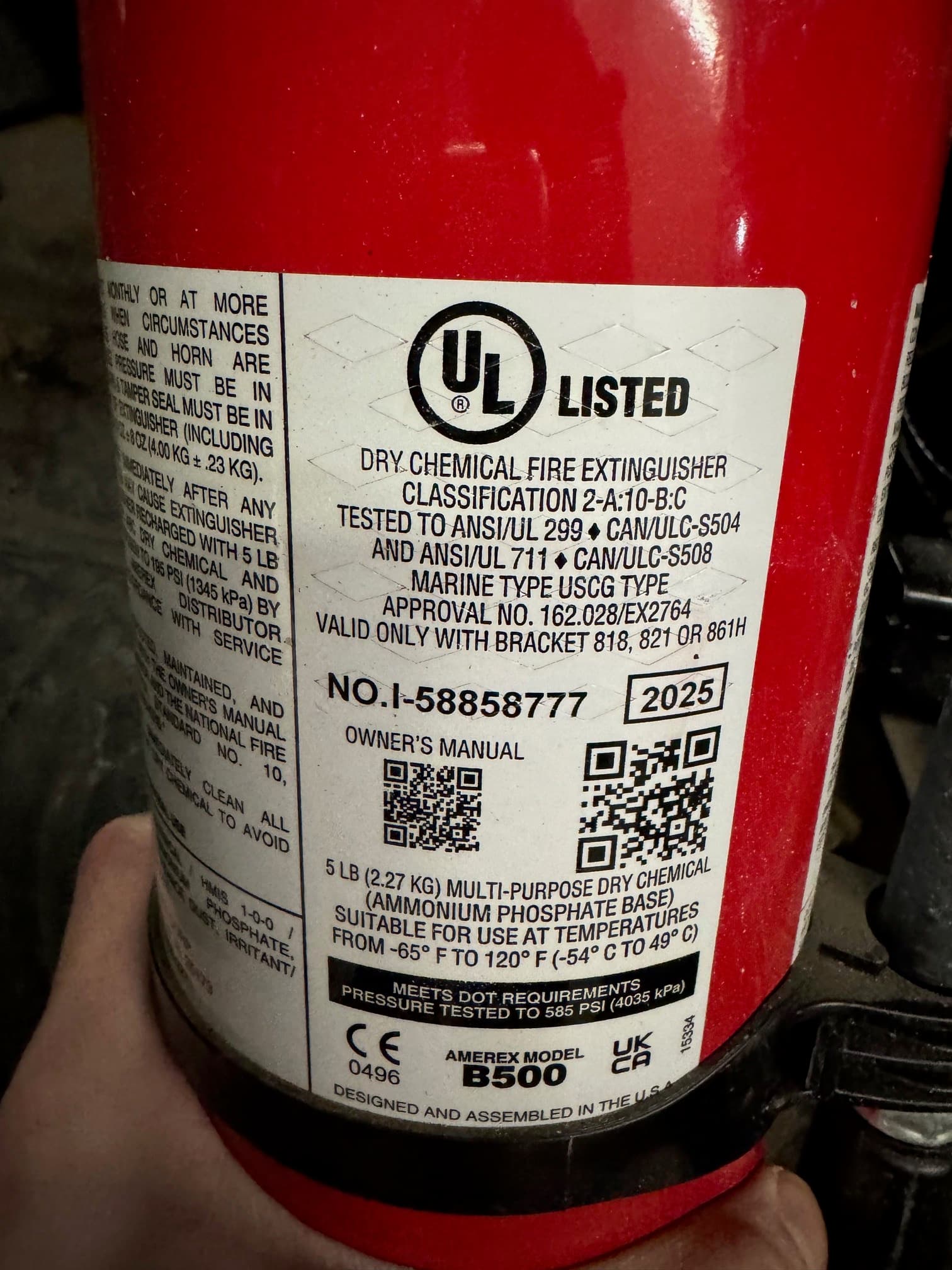
Read the label already on the unit

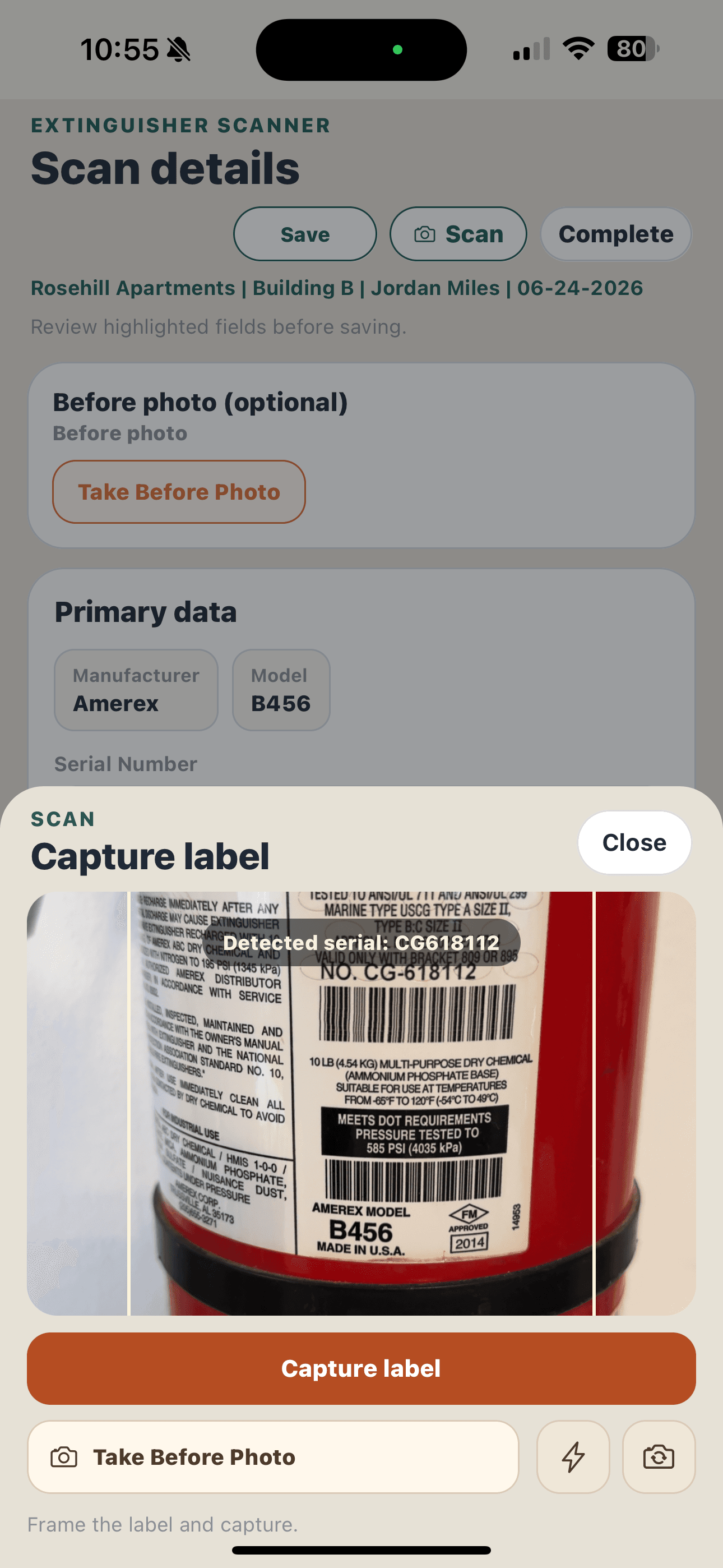
Amerex fire extinguisher manufacturer label with model and equipment information
Existing manufacturer label

Existing manufacturer label→Read printed information→Build inspection draft

  1. 01Point the camera at the manufacturer label
  2. 02Capture information printed on the label
  3. 03Review and correct the draft
  4. 04Inspect and save

Label scanning assists data capture; it does not remove the technician's review step.

Manufacturer-label scanning

Scan the label already on the extinguisher.

Point the camera at the manufacturer label. Extinguisher Scanner helps fill an editable inspection draft from information it can read on the label.

Extinguisher Scanner uses optical character recognition (OCR) to read visible text from the extinguisher's existing manufacturer label.

✓Manufacturer
✓Model
✓Serial number
✓Manufacture year
✓Extinguisher type
✓Size

The app may return a complete draft, a partial result, or a manual entry prompt. You stay in control of what gets saved.

See the inspection app workflow
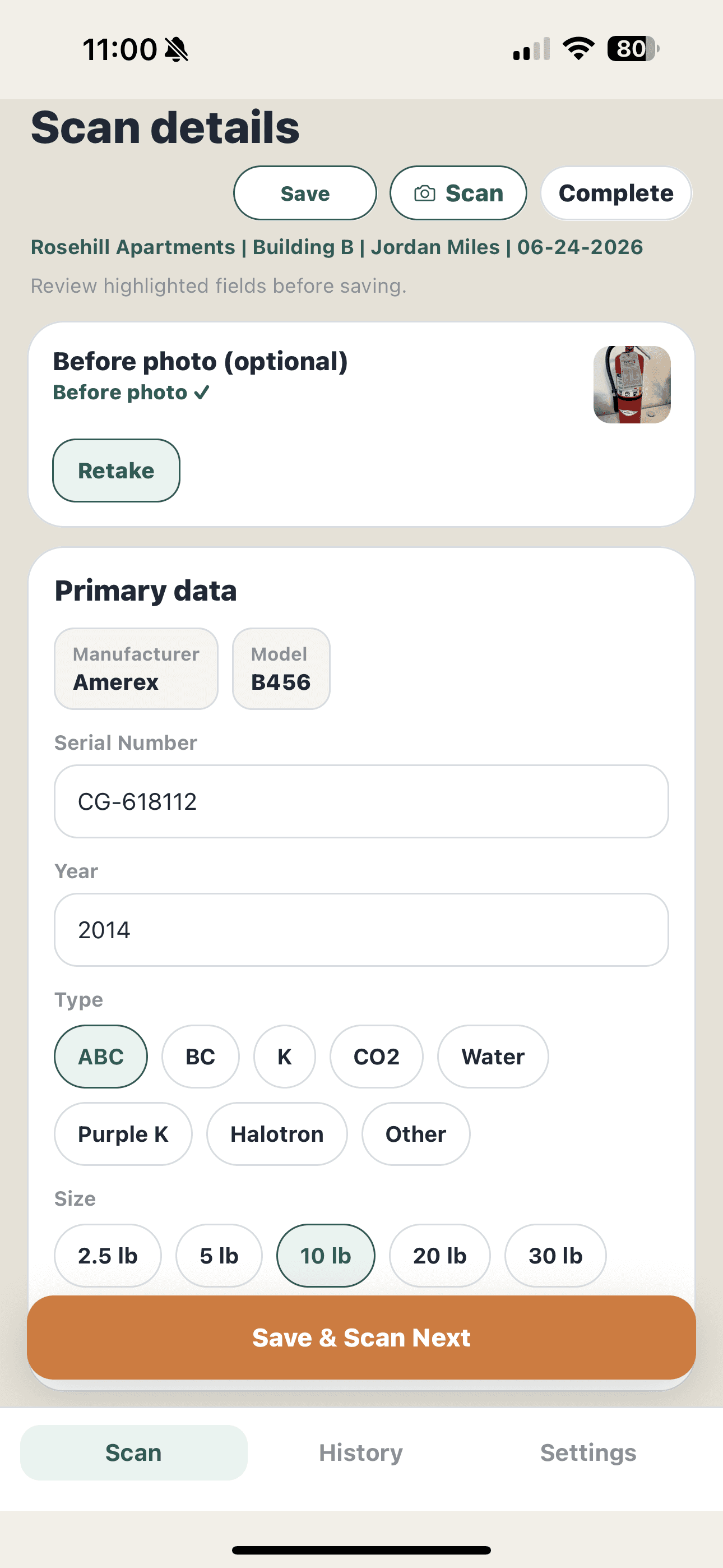
Extinguisher Scanner scan details screen showing editable manufacturer, model, serial number, manufacture year, type, and size
Review the captured details before saving

Barcode scanning vs label scanning

Barcode scanning and manufacturer-label scanning are not the same thing.

A barcode scan decodes a visual identifier. Manufacturer-label scanning uses OCR to read printed words and numbers that can help fill inspection fields.

DimensionBarcode or QR asset trackingManufacturer-label scanning
What gets scannedAn encoded barcode or QR identifier, often associated with an asset record.The printed words and numbers already visible on the manufacturer label.
Separate asset labelCommon in asset workflows, although some systems also accept manufacturer-provided codes.Not needed to begin capturing the printed extinguisher information.
Initial equipment setupCan involve creating or importing a record and associating its code, depending on the platform.Starts with the extinguisher in front of the technician, then creates a reviewable draft.
Data-entry assistanceOpens a linked record or decodes fields when the code contains structured data.Attempts to fill inspection fields from visible label text.
Technician checkConfirm that the code and linked record match the equipment being inspected.Confirm and correct captured values before saving the extinguisher.

Current product workflow

A clear path from label to inspection record.

The workflow starts with the equipment in front of you and keeps technician review visible before anything is saved or shared.

StepWhat the app doesTechnician control
Capture label detailsAttempts to read visible manufacturer-label text into an editable inspection draft.Review and correct captured values before saving.
Document the inspectionKeeps service details, deficiencies, notes, and photos with the local inspection record.Confirm the condition and service decision in the field.
Use inspection historyRestores saved locations and prior service details from history stored on the device.Review prior details against the extinguisher's current condition.
Export the reportGenerates a branded PDF that can include before-and-after photos.Review the completed report before sharing it.

Inspection records remain on the device. Local backup and restore are supported; automatic cross-device sync is not included in the current release.

Why it matters

Keep the technician focused on the unit, not the setup project.

The practical benefit is a shorter path from seeing an extinguisher to documenting the inspection in front of you.

01

Less label setup

Begin with installed extinguishers instead of making a separate asset-label rollout the first step.

02

Less repetitive typing

Use information captured from the label as a starting point, then spend your attention confirming the inspection.

03

A reviewable workflow

See the captured manufacturer, model, serial, year, type, and size before anything is saved.

04

Built for the route

Move from one extinguisher to the next with inspection details and reports kept in the same app.

Review current plans on the pricing page.

FAQ

Fire extinguisher barcode scanning questions.

What is a fire extinguisher barcode scanner?+

It is usually an app or handheld scanner that reads a barcode or QR code associated with an extinguisher. The scan identifies the asset so a technician can open its record, inspect it, and update its history.

Do fire extinguishers already have barcodes?+

Some fire extinguishers already have barcodes or QR codes on the manufacturer label, but not every installed extinguisher has a code that works as an asset identifier for a given platform. Extinguisher Scanner takes a different approach: instead of depending on a barcode, it reads the existing manufacturer label to help capture details such as manufacturer, model, serial number, and manufacture year for review before saving.

Do I need to put barcode stickers on every extinguisher?+

No. You do not need to put barcode stickers on every extinguisher to begin using Extinguisher Scanner. The app starts with the label already on the unit, reading the existing manufacturer label to help capture extinguisher information for you to review and correct before saving. Separate barcode or QR asset labels may still be useful in some record-linking workflows, especially when returning to linked records later, but they are not required to start.

Can an app read a fire extinguisher manufacturer label?+

Yes. Label-scanning software can read printed text from a captured image and use it to suggest equipment fields. Label condition, glare, camera angle, print quality, and layout affect results, so technician review remains important.

Can Extinguisher Scanner read serial numbers?+

Extinguisher Scanner attempts to capture the serial number from the label and places the result in an editable field. Technicians should confirm the value against the extinguisher before saving.

Can Extinguisher Scanner identify the manufacturer and model?+

The app can suggest a manufacturer and model when the label text matches supported patterns and model information. The result is presented for review and can be corrected in the inspection screen.

Is OCR the same as barcode scanning?+

No. Barcode scanning decodes a structured visual code. OCR reads printed characters. Extinguisher Scanner applies OCR to ordinary label text and presents captured details for technician review.

Can I correct information after scanning?+

Yes. Scan results are a draft. You can review and edit the captured details before saving the extinguisher and continuing the inspection.

Start with the label already there

Try a fire extinguisher scanner built for the inspection.

Scan manufacturer-label text, review the result, and keep moving through the route.

Download Extinguisher Scanner on the App StoreGet Extinguisher Scanner on Google Play
View pricing

Available on iOS and Android

Open the iPhone and Android download page
Extinguisher Scanner app iconExtinguisher Scanner

Inspection-first software for fire extinguisher technicians who want to scan labels, document service, and finish reports faster.

Product

How it worksFeaturesPricingAboutBarcode Scanner AlternativeGet the app →

Available on iOS and Android

Company

Contact & SupportPrivacy PolicyTerms of UseDelete Accountsupport@extinguisherscanner.com

© 2026 Extinguisher Scanner LLC. All rights reserved.

Built for fire extinguisher technicians.